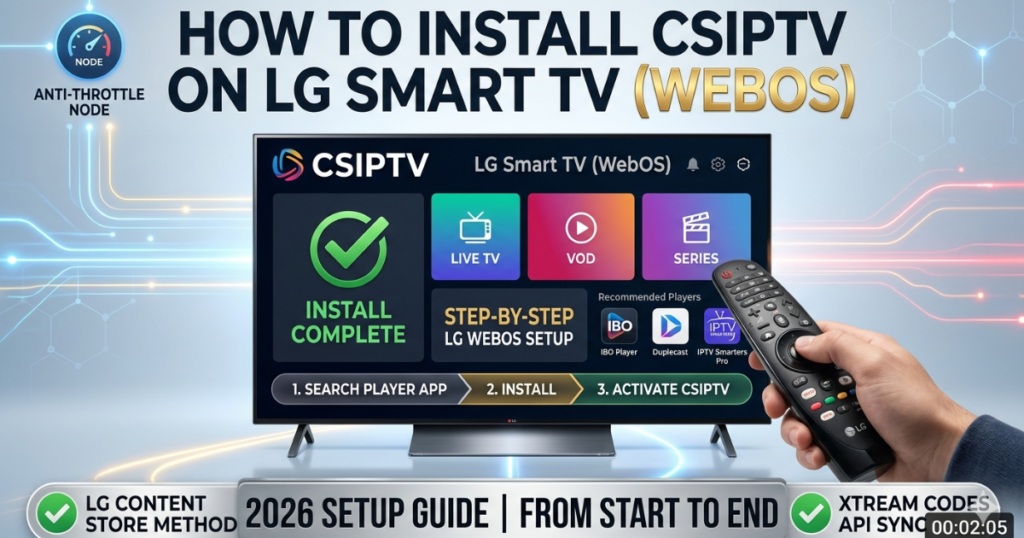
Understanding the LG Smart TV (WebOS) Ecosystem
Unlike other platforms, webOS is a proprietary system that prioritizes security and smooth UI performance. This means you won’t be “sideloading” apps via USB like you might on a Samsung Smart TV. Instead, you will use the LG Content Store to find a compatible “host app” that will act as the engine for your CSIPTV subscription.
For the best experience on webOS 6.0 (2021+) and newer versions, we recommend using apps that support the Xtream Codes API. This ensures that your Global Channels and 120k+ VOD titles load with the high-bitrate clarity your LG screen was built for.
Step 1: Accessing the LG Content Store
To begin, you must ensure your TV is connected to a stable internet connection. Because 4K streaming requires significant bandwidth, we recommend using an Ethernet cable rather than Wi-Fi.
- Press the Home button on your LG Magic Remote.
- Navigate to the LG Content Store (the shopping bag icon).
- Click the Search icon (magnifying glass) in the top right corner.
- Type in one of our recommended players: “IPTV Smarters Player”, “IBO Player”, or “Duplecast”.
Step 2: Choosing the Best Player for CSIPTV
Not all apps in the LG store are created equal. In 2026, these are the top three choices for LG Smart TV (WebOS) users:
- IPTV Smarters Player: The most popular choice, offering a clean layout for live TV and movies.
- IBO Player: A premium, fast-zapping app that is specifically optimized for LG’s hardware acceleration.
- Duplecast: Excellent for families, featuring Parental Controls and a highly organized VOD section.
Once you have selected an app, click Install. After the installation is complete, click Launch.
Step 3: Configuring Your Xtream Codes API
Now that the player is installed, you need to “link” it to the CSIPTV servers. We strictly recommend How to use Xtream Codes over M3U links for LG TVs because the API is much more stable on webOS.
- Open the app and select “Login with Xtream Codes API”.
- Any Name: Enter
CSIPTV. - Username: Enter the username provided in your Pricing Plan email.
- Password: Enter your secure password.
- URL: Enter the server URL (usually
http://csiptv.link:8080). - Click “Add User” or “Login”.
Step 4: Activating Your MAC Address (If Applicable)
Some apps like Smart IPTV or IBO Player require a one-time activation based on your TV’s MAC Address.
- Find your MAC address in the app’s settings (it looks like
00:1A:79:XX:XX:XX). - Go to the app’s official website on your phone or PC.
- Upload your CSIPTV M3U Playlist link and your MAC address to pair the devices.
- Restart the app on your LG Smart TV (WebOS) to see your channels.
Troubleshooting Common webOS Streaming Issues
If you experience buffering or app crashes, it is often due to the TV’s memory management or ISP interference.
| Problem | Solution |
| App Not in Store | Change your LG Services Country in settings to “United Kingdom” or “USA”. |
| Buffering on 4K | Disable “IPv6” in your Network settings; LG TVs often perform better on IPv4. |
| “Invalid Server” | Double-check the URL. Ensure there are no extra spaces at the end of the text. |
| ISP Throttling | Follow our Best IPTV Canada guide to setup a VPN on your router. |
Why CSIPTV is the Perfect Match for LG OLEDs
Our business specializes in “Lossless Content Delivery.” When you stream on an LG OLED, every pixel is self-lit, providing infinite contrast. To honor this technology, CSIPTV delivers uncompressed 4K signals for Live Sports and cinema. While other providers compress their feeds to save server costs, we prioritize the “OLED-ready” experience, ensuring deep blacks and vibrant HDR colors.
CSIPTV Subscription Plans for LG Users
Maximize your LG Smart TV (WebOS) with a plan that matches your needs. Every package includes full 4K UHD support and multi-language EPG.
| Duration | Price | Connections | Features |
| 1 Month | €14.99 | 1 Device | Full 4K + VOD |
| 3 Months | €25.99 | 2 Devices | Anti-Freeze Pro |
| 12 Months | €39.99 | 3 Devices | Unlimited 2026 Pass |
Frequently Asked Questions (FAQs)
1. Can I use a USB to install CSIPTV on LG?
No. WebOS does not support sideloading Android APKs. You must use the apps available in the LG Content Store.
2. Is there a free trial for LG users?
Yes! We offer a 24-Hour Free Trial so you can test the app performance on your specific LG model before buying.
3. Does the app update automatically?
Yes, as long as your TV is connected to the internet, the LG Content Store will push updates to keep your player optimized.
Unlock Your LG’s Potential
Stop using your world-class TV for basic cable. Experience the future of global entertainment with the fastest-loading IPTV service on LG Smart TV (WebOS).
- Start Today: Get your 24-Hour Trial and see the 4K quality.
- Best Value: Secure the 12-Month Plan and transform your LG TV into a home cinema.