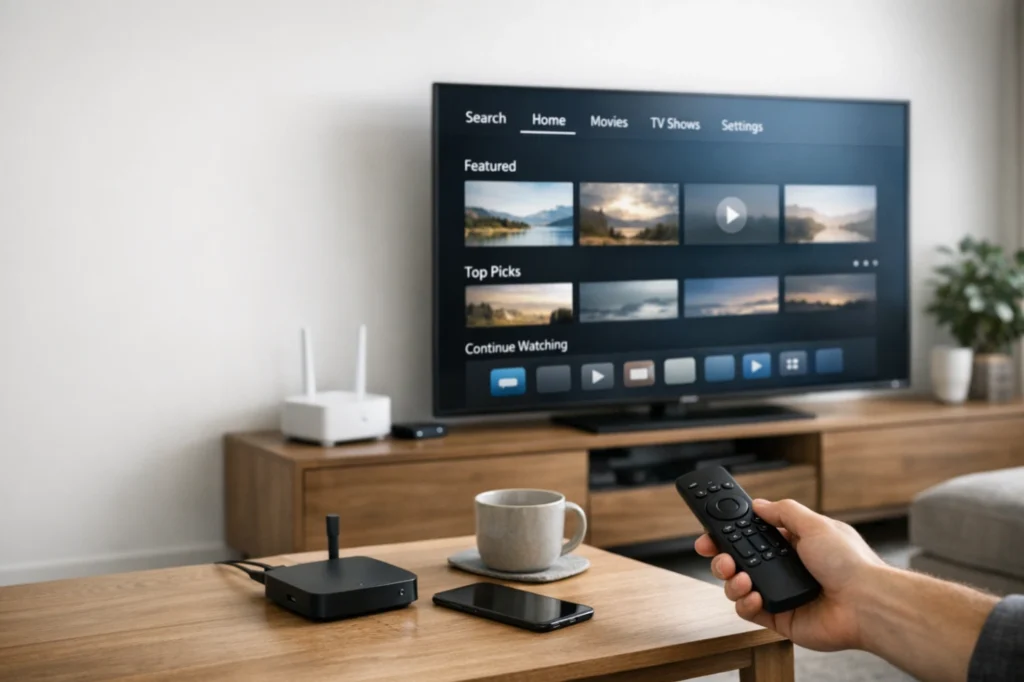
If you want a simple way to watch your legal IPTV service on television, learning how to install IPTV on Firestick is one of the best places to start. Firestick is affordable, easy to use, and works well for people who want a clean streaming setup without buying a new TV. In this guide, you will learn the safest and easiest way to get started, choose the right player app, sign in with your service details, and improve playback quality.
Before you begin, use only a legitimate IPTV provider that has the rights to distribute the channels or content it offers. This article focuses on legal setup, device compatibility, and user experience. It does not promote unlicensed content or unofficial app sources.
Why Firestick is popular for IPTV
Firestick is popular because it is small, fast, and works with many well-known IPTV player apps. For many users, it is simpler than setting up a computer or changing the software on a Smart TV. Once the player is installed, you can log in with your provider details and manage everything from one remote.
- Easy connection to almost any modern TV
- Simple remote control navigation
- Good support for IPTV player apps
- Portable if you move between rooms or homes
- Affordable compared with buying a new television
What you need before you start
To understand how to install IPTV on Firestick properly, prepare everything first. This saves time and reduces setup mistakes.
- A Fire TV Stick connected to your TV
- A stable internet connection
- An active account with a legal IPTV provider
- Your login details, such as username, password, M3U URL, or portal details
- An IPTV player app that supports your provider format
If you do not know which format your provider uses, ask support before you install anything. Some services work with username and password, while others use an M3U playlist or portal login.
Choose the right IPTV player app first
Many people think the subscription and the player app are the same thing, but they are not. Your IPTV provider gives you access to content, while the player app displays that content on your device. This is important when learning how to install IPTV on Firestick, because the smoothness of your experience depends a lot on the app you choose.
Good player apps usually offer:
- Fast channel loading
- Support for live TV, VOD, and series
- EPG or TV guide support
- Favorites and recent channels
- Simple remote-friendly layout
Check official app pages and device support resources when possible, such as Amazon Fire TV help and the official websites of the apps you plan to use. You can also review general setup information from Amazon’s Fire TV support center and streaming device help pages like Amazon Fire TV Help.
How to install IPTV on Firestick step by step
1. Connect and update your Firestick
Plug the Firestick into your TV, connect it to Wi-Fi, and sign in to your Amazon account. Then check whether your device software is up to date. A current system helps apps run better and reduces playback problems.
2. Open the app store
Go to the search area on Fire TV and look for the IPTV player app you want to use. When possible, install from the official Amazon Appstore or from the official publisher instructions. Avoid random downloads from unknown websites.
3. Install the player app
Select the player app and install it. Wait for the app to download fully before opening it. Many setup problems happen when users open or close an app too quickly during installation.
4. Gather your IPTV login details
Open the email or message from your provider. You may receive one of the following:
- Username and password
- Server or portal URL
- M3U playlist link
- Activation or account code
5. Enter your details carefully
Open the player app and choose the login method that matches your provider. Type the details exactly as provided. Even a small space or one missing character can stop the setup from working.
6. Wait for the playlist and guide to load
After login, the app may take a little time to import channels, categories, and EPG data. Do not close the app too early. Let it finish loading, especially on first use.
7. Test playback
Open a few live channels, then test VOD or series if your plan includes them. This gives you a quick view of app speed, image quality, and guide loading.
Common mistakes when learning how to install IPTV on Firestick
Most setup issues come from simple mistakes, not from the device itself.
- Entering the wrong URL or password
- Using the wrong login method
- Installing an unsupported player app
- Using weak Wi-Fi far from the router
- Skipping software updates
- Using unofficial or outdated app files
Take a few extra minutes to verify details before assuming there is a bigger technical problem.
How to make IPTV smoother on Firestick
Knowing how to install IPTV on Firestick is only part of the process. You also want smooth performance after setup.
- Use strong Wi-Fi or Ethernet if available
- Restart the Firestick after setup
- Close background apps if the device feels slow
- Keep your IPTV player updated
- Use a player app that supports your service well
- Choose stream quality that matches your internet speed
For general device support and troubleshooting, Amazon also provides useful help on network and app behavior at Fire TV device support.
Should you use M3U or account login?
This depends on what your provider gives you. Some users prefer account login because it is easier to type with a remote. Others use M3U because it works with many player apps. There is no universal best choice. The best option is the one that works cleanly with your provider’s system and the player you selected.
Is Firestick better than Smart TV for IPTV?
In many homes, yes. Firestick often gets better app support than some Smart TV systems. It is also easier to replace or upgrade later. If your television is older or your TV app store has limited choices, Firestick can be a much easier solution.
Best practices for a good user experience
If your goal is not just to install a service but to enjoy it every day, focus on comfort. Organize favorite channels, test the guide, learn the search function, and choose a player interface that feels easy to use. The best IPTV setup is not only the one that works. It is the one that feels simple every time you turn on the TV.
Final thoughts on how to install IPTV on Firestick
Learning how to install IPTV on Firestick is easier than many people think when you keep the process legal, simple, and organized. Start with a trusted IPTV provider, choose a good player app, enter your details carefully, and optimize your internet connection. For many users, Firestick offers one of the easiest and most flexible ways to enjoy IPTV on a main television without a complicated setup.
FAQ
Can I install IPTV on Firestick without changing my TV?
Yes. Firestick works with many TVs through HDMI, so you do not need to buy a new television.
What is the safest way to install an IPTV player on Firestick?
Use the official Amazon Appstore or the app publisher’s official setup instructions whenever possible.
Why is my IPTV not loading after setup?
Usually because of incorrect login details, a weak network connection, or the wrong player app for your service format.
Does Firestick support EPG and catch-up?
It can, but support depends on your IPTV service and the player app you use.
Is Firestick a good option for beginners?
Yes. It is one of the easiest streaming devices for beginners because the setup process is simple and the remote is easy to use.