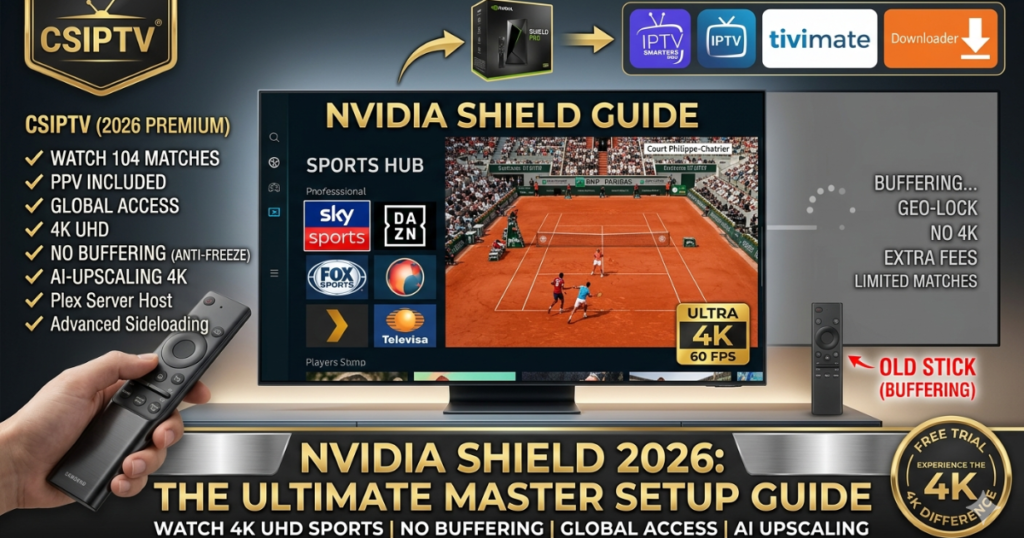
Why the Nvidia Shield Pro is Still the King in 2026
The core of any Nvidia Shield Guide is understanding the hardware’s unique advantages. In 2026, the Shield Pro’s Tegra X1+ processor still outperforms most modern sticks by using 256-core GPU architecture. This allows for “AI-Enhanced Upscaling,” which can take a standard 1080p stream and sharpen it to near-4K quality in real-time.
Unlike locked-down systems, the Shield provides an open Android TV environment. This means you have the freedom to install custom launchers, specialized media players, and networking tools that are blocked on other platforms. It is essentially a mini-computer optimized for your living room.
- AI Upscaling: Transforms 720p/1080p content into crisp 4K.
- Dolby Vision & Atmos: Native support for cinema-grade audio and video.
- Gigabit Ethernet: Essential for high-bitrate 4K remux and live sports.
- Expandable Storage: Two USB 3.0 ports for external hard drives or SSDs.
- Plex Media Server: The only streaming box that can act as a local server.
- GeForce Now: Cloud gaming at 4K 120Hz with ultra-low latency.
- Regular Updates: Supported longer than any other Android device in history.
Nvidia Shield Guide: The Initial Out-of-the-Box Setup
The first step in your Nvidia Shield Guide is the physical and software initialization. Ensure you are using a High-Speed HDMI 2.1 cable to support the full bandwidth required for 4K HDR. Once plugged in, follow the on-screen prompts to connect your Google account.
During the setup, the Shield will ask to “Match Content Frame Rate.” Always enable this. It ensures that if you are watching a movie at 24fps or a sports match at 60fps, the Shield adjusts its output to match, preventing the “micro-stutter” often seen on cheaper devices.
- Cable Choice: Use HDMI 2.1 for 48Gbps bandwidth support.
- Google Login: Syncs your Play Store purchases and YouTube history.
- Remote Pairing: Hold the ‘Select’ button to pair the triangular remote.
- CEC Settings: Enable “HDMI-CEC” to control your TV power with the Shield remote.
- Resolution Check: Set to 3840×2160 @ 60Hz (HDR10/Dolby Vision Ready).
- Audio Setup: Set to “Auto” to detect your Soundbar or Receiver formats.
- Developer Options: Go to ‘About’ and click ‘Build’ 7 times to unlock advanced menus.
Method 1: Installing Apps via the Google Play Store
For most users, the Play Store is the safest way to follow this Nvidia Shield Guide. The Android TV version of the store is curated to show only apps that are fully compatible with a remote control. Simply use the voice search on your remote to find your favorite streaming platforms.
- Navigate to Apps: Open the “Apps” row on the home screen.
- Open Play Store: Select the Google Play Store icon.
- Search: Use the microphone or keyboard to type “IPTV Smarters” or “VLC”.
- Install: Click the download button and wait for completion.
- Verified Apps: Only “Leanback” optimized apps appear here.
- Auto-Updates: Keep your apps current without manual intervention.
- Cloud Sync: Apps installed on other Android TVs will appear in “My Library.”
- Voice Integration: Ask “Open Netflix” to launch apps instantly.
- Safety: Every app is scanned by Google Play Protect.
- Purchase History: Access premium apps you’ve already bought.
- Easy Uninstallation: Manage storage directly from the app menu.
Method 2: Sideloading Apps Using the “Downloader” App
Sideloading is a crucial part of any advanced Nvidia Shield Guide. Some high-performance players, like certain versions of TiviMate or customized CSIPTV apps, aren’t on the Play Store. The “Downloader” app by AFTVNews is the most reliable tool for this.
First, you must grant “Unknown Sources” permission in the settings. Then, enter the direct URL or a shortcode into the Downloader app to fetch the APK file directly. This method bypasses all store restrictions, giving you full control over your software.
- Enable Unknown Sources: Settings > Device Preferences > Security > Unknown Sources.
- Downloader App: Search for “Downloader” in the Play Store first.
- URL Entry: Type the direct link to the APK file.
- Permissions: Allow the app to access your internal storage.
- Install Prompt: Once the file downloads, click “Install” at the bottom right.
- File Cleanup: Delete the APK after installation to save space.
- Browser Mode: Use the built-in browser to find download links on the web.
Method 3: Using “Send Files to TV” for PC-to-Shield Transfer
If you have an APK file on your phone or computer, you don’t need a USB drive. A pro tip in this Nvidia Shield Guide is using the “Send Files to TV” (SFTV) app. Install it on both your Shield and your other device, and you can transfer files wirelessly over your home Wi-Fi.
- Install SFTV: Get it on both the Shield and your Android phone.
- Open on Shield: Select “Receive.”
- Open on Phone: Select “Send” and pick your file.
- Complete: The file will appear in the Shield’s “Download” folder.
- Wireless Speed: Faster than most cloud-based transfer methods.
- No Cables: No need to unplug your Shield to move files.
- Cross-Platform: Works with Windows, Mac, and Android.
- File Management: Move photos, videos, or APKs with ease.
- Discovery: Automatically finds devices on the same network.
- Reliability: Uses a direct peer-to-peer connection.
- Batch Transfer: Send multiple files simultaneously.
Optimizing the AI Upscaling Settings
This is the “secret sauce” of the Nvidia Shield Guide. To get the best 4K experience, you must configure the AI settings correctly. Go to Settings > AI Upscaling and set it to “AI-Enhanced.” This uses a neural network trained on millions of images to add detail to your streams.
We recommend setting the detail level to “Medium.” Setting it to “High” can sometimes cause over-sharpening or “ringing” around text. This feature is particularly incredible when watching live sports on Best IPTV USA 2026 Premium Service, as it makes every blade of grass visible.
- AI-Enhanced Mode: The most powerful setting for 1080p content.
- Detail Level: “Medium” provides the most natural look.
- Demo Mode: Use the “Side-by-Side” view to see the difference in real-time.
- Compatibility: Works on content from 360p up to 1080p.
- Frame Rate Support: Now supports AI upscaling up to 60fps.
- Bypass: Does not affect 4K native content (avoids double processing).
- Custom Button: Assign the top-right remote button to toggle AI on/off.
Configuring the Perfect IPTV Environment
To truly leverage your Shield, you need a high-end player. This Nvidia Shield Guide recommends TiviMate Premium for its cable-like interface. Pair it with your CSIPTV credentials via the Xtream Codes API for the fastest channel switching in the industry.
Once logged in, go to the player settings and enable “Auto Frame Rate” and “Hardware Decoder.” This allows the Shield’s Tegra chip to handle the heavy lifting of 4K streaming, reducing CPU load and preventing the “spinning circle” of buffering.
- Xtream Codes API: More stable than traditional M3U links.
- Hardware Decoding: Uses the GPU for smooth 4K playback.
- Auto-Sync EPG: Set to update every 24 hours for accuracy.
- Favorite Groups: Organize 55k+ channels into manageable lists.
- VOD Integration: Metadata support for movie posters and ratings.
- Recording: Use a USB 3.0 drive to record live matches.
- Backup/Restore: Save your settings to the cloud or local storage.
Bypassing Buffering with Advanced Network Tweaks
Buffering is the enemy of any Nvidia Shield Guide. Often, your ISP is the culprit. We recommend setting a custom DNS like Cloudflare (1.1.1.1) directly in the Shield’s network settings. This bypasses slow ISP name-servers and can decrease channel loading times.
If you are using a Fix IPTV Buffering 2026 strategy, ensure you are connected via Ethernet rather than Wi-Fi. Even the best Wi-Fi 6 can suffer from interference; a physical cable provides the dedicated bandwidth necessary for high-bitrate 4K sports.
- Custom DNS: Use 1.1.1.1 or 8.8.8.8 for faster lookups.
- IPv6 Toggle: If you experience lag, try disabling IPv6 in settings.
- Ethernet Priority: Settings > Network > Ethernet (Ensure “Connected”).
- Static IP: Prevents the Shield from losing connection during IP lease renewals.
- Speed Test: Use the “Analiti” app to check for packet loss.
- Buffer Size: In your IPTV app, set the buffer to “0” or “None” for live TV.
- Fan Speed: Set to “Cool” or “Performance” to prevent thermal throttling.
Expanding Your Shield with External Storage
The Shield Pro comes with 16GB, which is plenty for apps but not for recordings. This Nvidia Shield Guide suggests adding a fast USB 3.0 drive or a portable SSD. When you plug it in, select “Set up as internal storage.” This migrates your apps and data to the drive, freeing up the lightning-fast onboard flash memory.
This is especially useful if you are using the Shield as a Plex Media Server. You can store thousands of 4K movies on an 8TB external drive and stream them to every other device in your house using the Shield’s hardware transcoding capabilities.
- USB 3.0 Mandatory: Do not use old USB 2.0 drives (too slow).
- SSD Recommendation: Samsung T7 or SanDisk Extreme for best results.
- Internal Storage Mode: Encrypts the drive for app usage.
- Removable Storage Mode: Best for moving files between PC and Shield.
- Mounting NAS: Shield can mount network-attached storage via SMB.
- App Migration: Go to App Info > Storage to move apps to the USB.
- Recording Path: Set your IPTV app to save to the “Recordings” folder on USB.
Customizing the Interface with Third-Party Launchers
The default Android TV launcher is filled with ads and “Recommendations” you might not want. A pro tip in our Nvidia Shield Guide is installing Projectivy Launcher. It provides a clean, fast, and completely ad-free interface that puts your apps front and center.
You can use the “Launcher Manager” app to set Projectivy as your default. This speeds up the Shield significantly because it doesn’t have to load the heavy Google TV home screen in the background every time you press the home button.
- Projectivy Launcher: The most popular ad-free alternative.
- Custom Wallpaper: Use your own 4K photos as the background.
- Hide Apps: Remove clutter by hiding unused system apps.
- Row Customization: Change the size and count of app icons.
- No Ads: Removes the “sponsored” rows from the top of the screen.
- Performance: Uses less RAM than the stock launcher.
- Shortcuts: Add one-click buttons for specific IPTV categories.
How to Use Shield as a Plex Media Server
Unique to the Pro model, this Nvidia Shield Guide must mention its server capabilities. The Shield can act as a “Plex Media Server,” meaning it can serve high-quality movies to your phone, tablet, or other TVs even when you aren’t home.
Because the Tegra chip supports hardware transcoding, it can convert a heavy 4K file into a smaller 720p file on the fly for your mobile data. This makes it the most energy-efficient and powerful media server for its size in 2026.
- Enable Server: Open the Plex app > Settings > Plex Media Server.
- Hardware Acceleration: Enable to use the GPU for video conversion.
- Library Folders: Point Plex to your external USB drive.
- Remote Access: Watch your local movies from anywhere in the world.
- Metadata Scraping: Automatically adds posters and actor info.
- Subtitles: Built-in “OpenSubtitles” support for every movie.
- Power Efficient: Uses under 10W of power while serving 4K.
Comparison: Nvidia Shield vs. Other 2026 Devices
In the CSIPTV vs YouTube TV and general hardware landscape, how does the Shield hold up? Compared to a Firestick, the Shield has 4x the RAM and a much faster file system. Compared to an Apple TV, it offers more freedom for sideloading and better audio passthrough for TrueHD and DTS-X.
While CSIPTV vs Apollo Group TV 2026 is a software debate, the Shield is the hardware that makes both services run at their absolute peak. It is the only device that provides the “complete” package for the serious home theater enthusiast.
| Feature | Firestick 4K Max | Apple TV 4K | Nvidia Shield Pro |
| Upscaling | Basic | Excellent | Industry-Leading AI |
| Sideloading | Easy | Very Difficult | Unlimited / Easy |
| Audio Passthrough | Limited | Limited | Full (TrueHD/DTS:X) |
| Ethernet | Via Adapter (Slow) | Gigabit | Gigabit Native |
| Storage | 16GB (No USB) | Up to 128GB | Expandable via USB 3.0 |
Mastering Your Nvidia Shield
The Nvidia Shield Guide concludes with a simple truth: you get out what you put in. By spending 20 minutes optimizing your settings, installing a professional launcher, and choosing a premium provider like CSIPTV, you transform a simple box into a world-class cinema.
The Shield Pro remains the gold standard because it respects the user’s intelligence and desire for quality. In 2026, there is no better way to watch the 104 matches of the FIFA World Cup 2026 Prep or the Formula 1 Monaco GP than on a Shield.
- Step 1: Setup AI-Enhanced Upscaling.
- Step 2: Use Ethernet for 4K.
- Step 3: Install TiviMate via Downloader.
- Step 4: Add your CSIPTV credentials.
- Step 5: Enjoy the best 4K TV in the world.
Unlock the Power of Your Shield
Your Nvidia Shield is capable of greatness—don’t hold it back with average content.
- Test the Quality: Get your 24-Hour Free Trial and see AI-Upscaling in action.
- Go Pro: Get the 12-Month Elite Plan for 3 connections and 4K UHD.
[GET THE BEST CONTENT FOR YOUR NVIDIA SHIELD]
Frequently Asked Questions (FAQs)
1. Is the Nvidia Shield Pro still worth it in 2026?
Absolutely. Its AI upscaling and raw processing power for high-bitrate 4K content are still superior to any other Android-based device.
2. Can I use the “Tube” model for 4K IPTV?
The Shield “Tube” is 32-bit and has less RAM. For the best experience with 4K UHD and large VOD libraries, we highly recommend the 64-bit “Pro” model.
3. How do I update my Shield to the latest version?
Go to Settings > Device Preferences > About > System Upgrade. Nvidia is famous for providing updates years after a device is released.
4. Why is my Shield remote not working?
Check the batteries (AAA). If it’s still not responding, hold the ‘Back’ and ‘Home’ buttons for 3 seconds to put it into pairing mode.
5. Can I use a controller with my Shield?
Yes, you can pair any Bluetooth controller (Xbox, PlayStation) to play games via GeForce Now or Android TV native games.